
Overview
VINs Acceleration is a traffic acquisition tool that Fullpath offers to helps drive potential shoppers to VDPs that need more views. This product leverages tactics including: targeted ads, email outreach, SMS campaigns, and special promotions via Fullpath's ChatGPT solution, to help dealers expose specific VINs to more shoppers and improve sales. This tool is especially helpful in moving aging inventory off of the dealership's lot.
Navigation
- Enter the Fullpath Dashboard > Activation
- Vins Accelerations > Overview
-
https://dashboard.fullpath.com/last-call/overview
Page Structure
Quick Configuration display:
- Buget
- How many Promoted Vins during the selected timeframe
- Promotion Rules
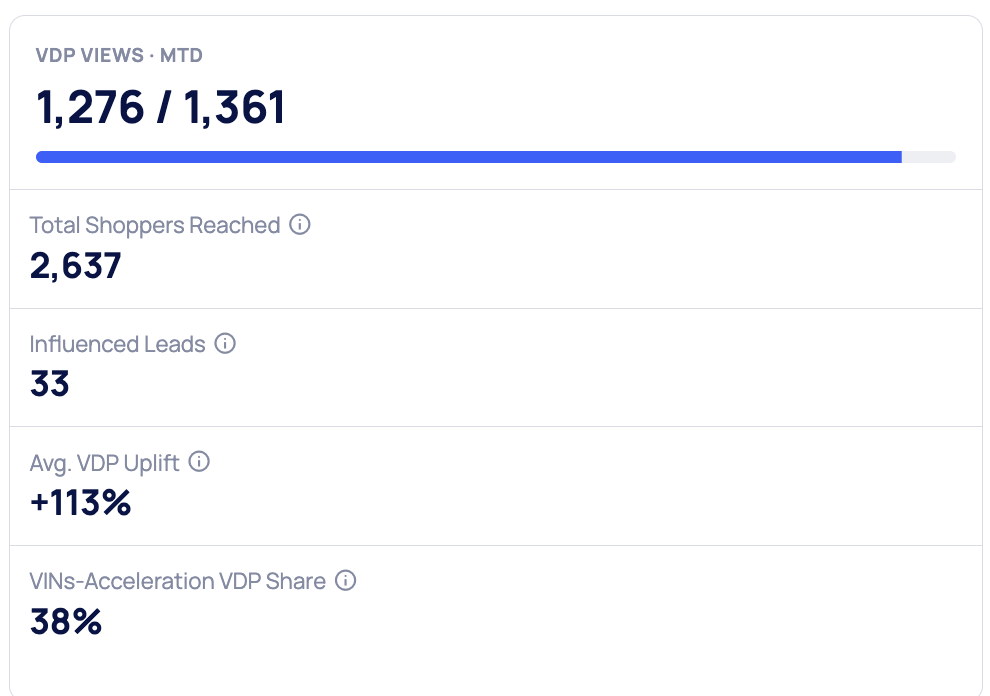
Performance Metrics include:
-
VDP View (MTD): Known and unknown shoppers who visited a VDP for a boosted VIN.
-
Total Shoppers reached: Known and unknown shoppers who visited a VDP for a boosted VIN.
-
Influenced Leads: Total leads Influenced by VINs-Acceleration activity during the selected time period. The Fullpath Attribution Network (FAN) identifies in-market shoppers and drives them to your promoted vehicles across multiple channels, including Google, Facebook, email marketing, and more.
Influenced Leads shows the leads generated from that FAN-driven activity during the selected time period. Read more about the FAN here.
-
Average VDP Uplift: Compares each VIN's average daily VDP views after promotion to the same period before promotion and reports the percent change.
-
Vins Acceleration VDP Share: Percent of month-to-date VDP views for promoted VINs driven by VINs-Acceleration.
Performance Before and After
The performance glance before and after promotion provides a baseline from which to measure Vins Acceleration impact
It may also be viewed by condition to see a more granular breakdown
VIN Performance Over Time
Graph Display: Shows VDP views over time with each line representing an individual VIN.
Filters:
Multi-select filters enable users to refine the data by:
- Condition(s)
- Year(s)
- Make(s)
- Model(s)
- Trim(s)
Important to note:
Applying filters will display only VINs that match the selected criteria
Audiences created in the CDP comprised of Vins Acceleration opportunities will not match 1:1 - the CDP audiences are dynamic and will change daily as shoppers meet or fall out of specified criteria
Data Scope:
The graph reflects only Accelerated VDP views for promoted VINs.
Time Range Selection:
Users can choose from preset time ranges to display data:
- 7 days
- 14 days
- 30 days (default)
Default graph view shows data from the past 3 months (Month-To-Date).
Performance Views:
- Top 5: Displays the top 5 performing VINs based on VDP views.
- Manual: Users can specify inventory filters to select VINs.
- All: Displays all promoted VINs for the selected period.
The default setting is Top 5 VINs over the past 3 months.
Promoted Inventory
The Promoted Inventory table highlights the following information:
Vehicle (as listed in the dealership's inventory, trim details and VIN # included)
Condition (new, used, CPO)
Days on Lot
VDP views Month to date
Average number of Daily VDP Views before the vehicle was added to VINs Acceleration
Average number of Daily VDP Views now (after Vins Acceleration promotion)
When clicking on a vehicle row in the list - the accordion opens and users get an enhanced view of the specific VIN
Exporting Shopper Data
Users can export a list of Known Shoppers who viewed the Promoted VIN as a CSV file.
Interpreting Page Labels
When looking back at Promoted Vehicles from previous months, you may see vehicle rows which are greyed out. This indicates a vehicle was added to the promotions list but was quickly moved out or sold before Vins Acceleration was able to run ads and promote it.
Vehicles that are labeled as "Moved Out" are vehicles whose VDPs have been removed from the dealer website or inventory feed.
These vehicles will feature a Moved Out icon until Fullpath can verify the sale via your CRM. Once the sale has been verified, the Moved Out icon will be replaced with a Sold icon, which will include the date of the sale.
Page Actions
Manually Add a Vehicle to VINs Acceleration
Fullpath will automatically add slow-moving VINs to your promotion list. However, you can also manually add a VIN to your Promoted Inventory.
There are two ways to manually add a VIN:
Click on the Add more VINs to VINs Acceleration link in the Setup section, or
Click the Add VINs button in the Promoted Inventory table.
When this action is performed on a VIN, it will immediately be added to the VINs Acceleration Promotions List.
Manually Remove a Vehicle from VINs Acceleration
- Find the VIN you want to remove from VINs Acceleration on the Promoted Inventory list.
- Click the three dots to the right-side of the data displayed for the VIN you want to remove, a dropdown will appear.
- Select Remove from VINs Acceleration from the dropdown.
This action will permanently remove this vehicle from the VINs Acceleration Promotions List.